1Preparation: an account for your child
Your child needs their own Windows account as a standard user, without administrator rights. With administrator rights, any parental control can be bypassed, Fairhour included.
- Windows: Settings → Accounts → Other users → Add account.
- Keep the account type “Standard user”.
- Keep an account with administrator rights for yourself, with a password your child does not know.
2Install Fairhour on the PC
- Sign in to the PC with your child’s account.
- Download and run
Fairhour-Setup.exe. - Windows asks for the administrator password: you enter it.
Fairhour then starts with Windows and runs in the background. The icon at the bottom right next to the clock shows today’s time.
3The setup assistant
On first start, Fairhour guides you through the essentials in six steps:
| Step | What happens |
|---|---|
| Parent password | Protects the parent area. Without a password, anyone at the PC can change the rules. |
| Child’s age | Fairhour suggests a suitable daily limit. Accept it or change it later. |
| Protection | Sets up system protection. This Windows service restarts Fairhour if it is closed and applies the browser rules. Windows asks for administrator rights. |
| Windows account | Warns if your child’s account has administrator rights (see step 1). |
| Parent app | Connect the PC to your phone. You can also do this later (steps 6 and 7). |
| Done | Summary. Updates are checked automatically. |
You can repeat the assistant at any time: Help → Go through setup again.
4Set the rules
In the menu under Parents, unlock the parent area with your password. There you find:
- Daily limit for each day of the week, for the whole PC or for single programs. A warning comes before time runs out.
- Bedtime: from a set time the PC is locked. Friday and Saturday evenings can have their own times. Optionally the screen turns grey beforehand.
- Study time: during this window only programs you marked as “always allowed” run.
- Free days: holidays or birthdays. On these days neither the limit nor bedtime applies.
- Time account: part of the unused minutes is added the next day.
- One more round: once a day a few extra minutes without having to ask you.
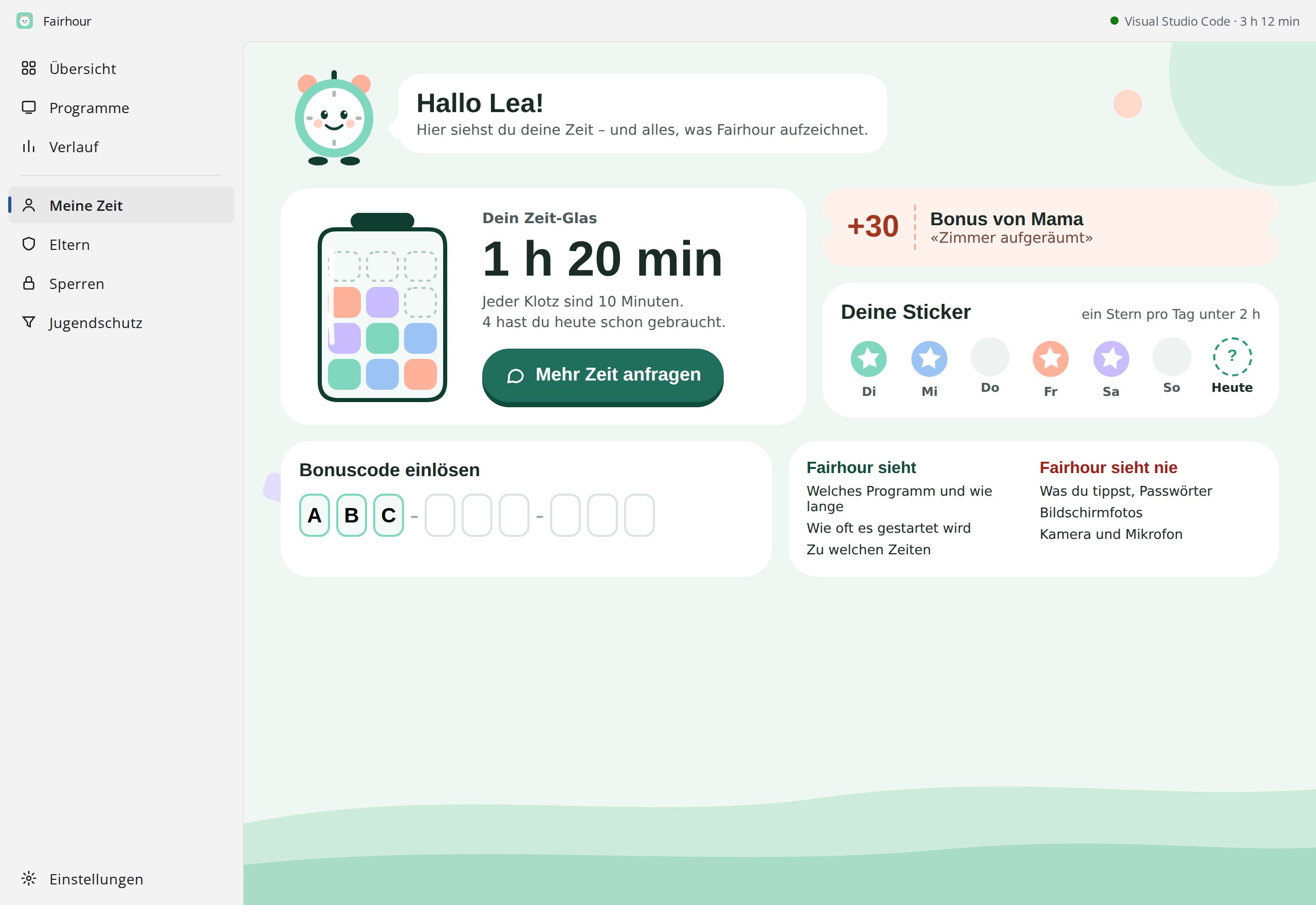
Your child always sees what applies on the My time page, without a password: time left, rules and every change made by the parents.
5Blocking and content filter
The menu items Blocking and Content filter stay grey until the parent area is unlocked.
Blocking
Block programs and websites, with templates for social networks, streaming and games. Optionally only at certain times.
Content filter
Fairhour sets browser rules for this. In Chrome, Edge, Brave, Vivaldi and Opera, safe search applies on Google, Bing and DuckDuckGo, YouTube can run in restricted mode, and private windows are off. In Firefox, private windows are off. Blocked websites apply in all of these browsers.
6Parent app for Android
Create a family
- Install and open the Fairhour parent app. The server address is already filled in.
- Choose New family and set a password with at least 8 characters.
- Write down the family ID. You can also find it later in the app settings.
- Protect the app with a PIN or fingerprint, so your child cannot give themselves time with your phone.
Pair the PC
- On the PC: Settings → Parent app → Pair with QR code. In parent mode, Fairhour asks for the parent password.
- In the app: Pair PC → Scan QR code on the PC.
Without a camera, use a code instead: in the app Pair PC → Create code, type it on the PC and press “Pair”.
7iPhone: the web view
There is no separate iPhone app. The web view in the browser covers the essentials:
- On the PC: Settings → Parent app → Sign in a parent phone (QR code).
- Scan the code with the iPhone camera. The web view opens with the family ID filled in.
- Enter only the password.
- Tip: Share icon → Add to Home Screen. Fairhour then opens like an app.
In the web view you can give time, take a break, press “Done for today” and answer requests. You also see today’s alerts, new programs, today’s daily limit and what applies tomorrow.
8Second parent or a new phone
- With an invitation: in the first parent’s app, Invite second parent. On the second phone, Sign in → I have an invitation code → Scan QR code. The code is valid for 15 minutes.
- Without a second phone: on the PC, Settings → Parent app → Sign in a parent phone (QR code). In the Android app, Sign in → Scan QR code on the PC, then enter only the password.
9Day to day
Your child asks for more time
On My time → Ask for more time, your child picks the minutes and adds a reason. You get an alert on your phone and answer yes, no or “Only 15”. The answer reaches the PC within about two minutes.
Chores for time
In the app under Chores, set what earns how many minutes, for example “Tidy your room = 20 min”. Your child ticks the chore off on the PC, you confirm, and the minutes are credited.
Stepping in
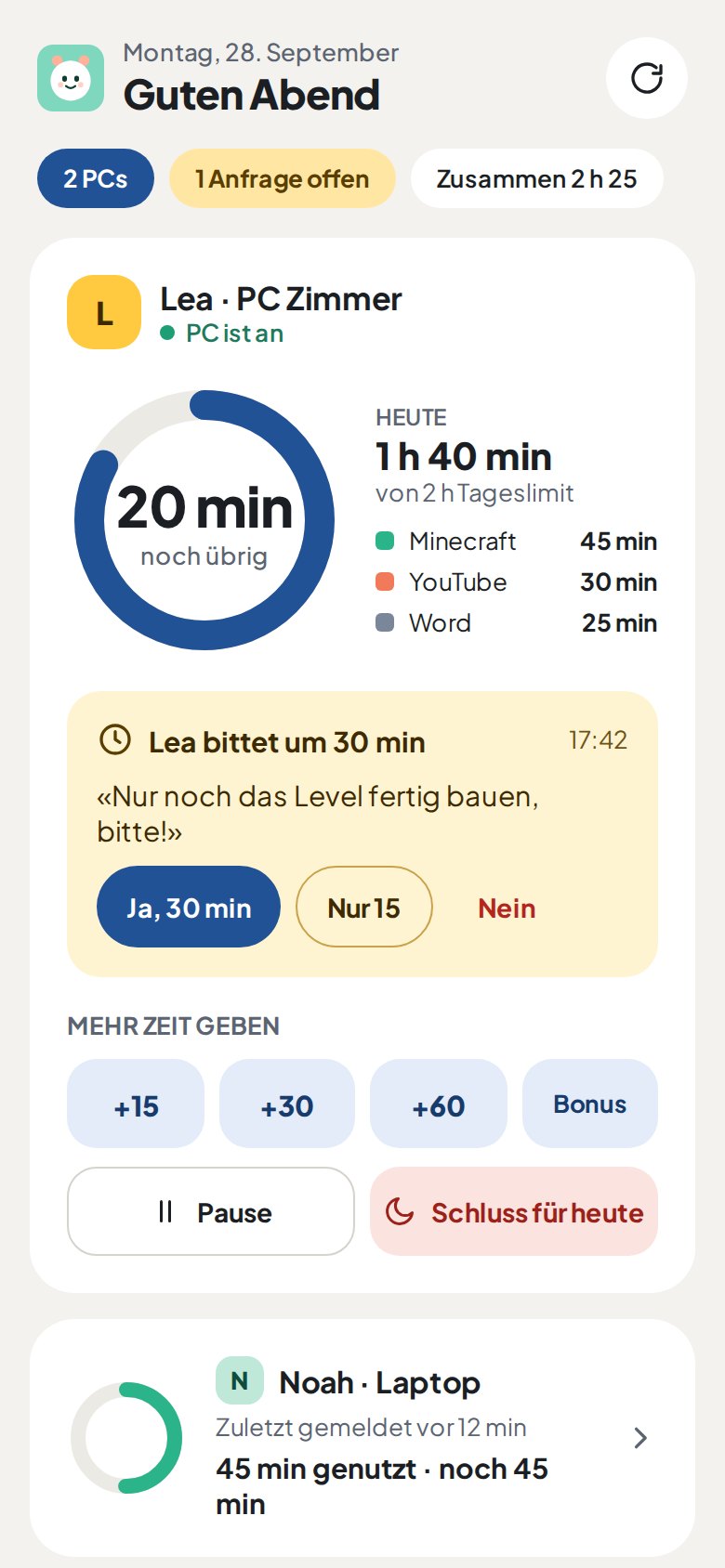
On the PC’s card: +15, +30, +60 min, a bonus with a reason, break, stop for today and unlock again. At the bottom of the card you see what applies tomorrow: daily limit, free day, bedtime and study time.
10Alerts and weekly report
In the parent app
In the app settings, switch each kind on or off: time requests, limit reached, game started, long use (from how many minutes), content filter and new programs. If protection is bypassed, the app always reports it.
Recognise websites: for “long use” to also report websites such as YouTube or TikTok, switch on Settings → Parent app → Recognise well-known websites such as YouTube on the PC. This setting is off by default. Fairhour only checks the browser’s window title on the PC and sends only the name of the website, never the title or the address.
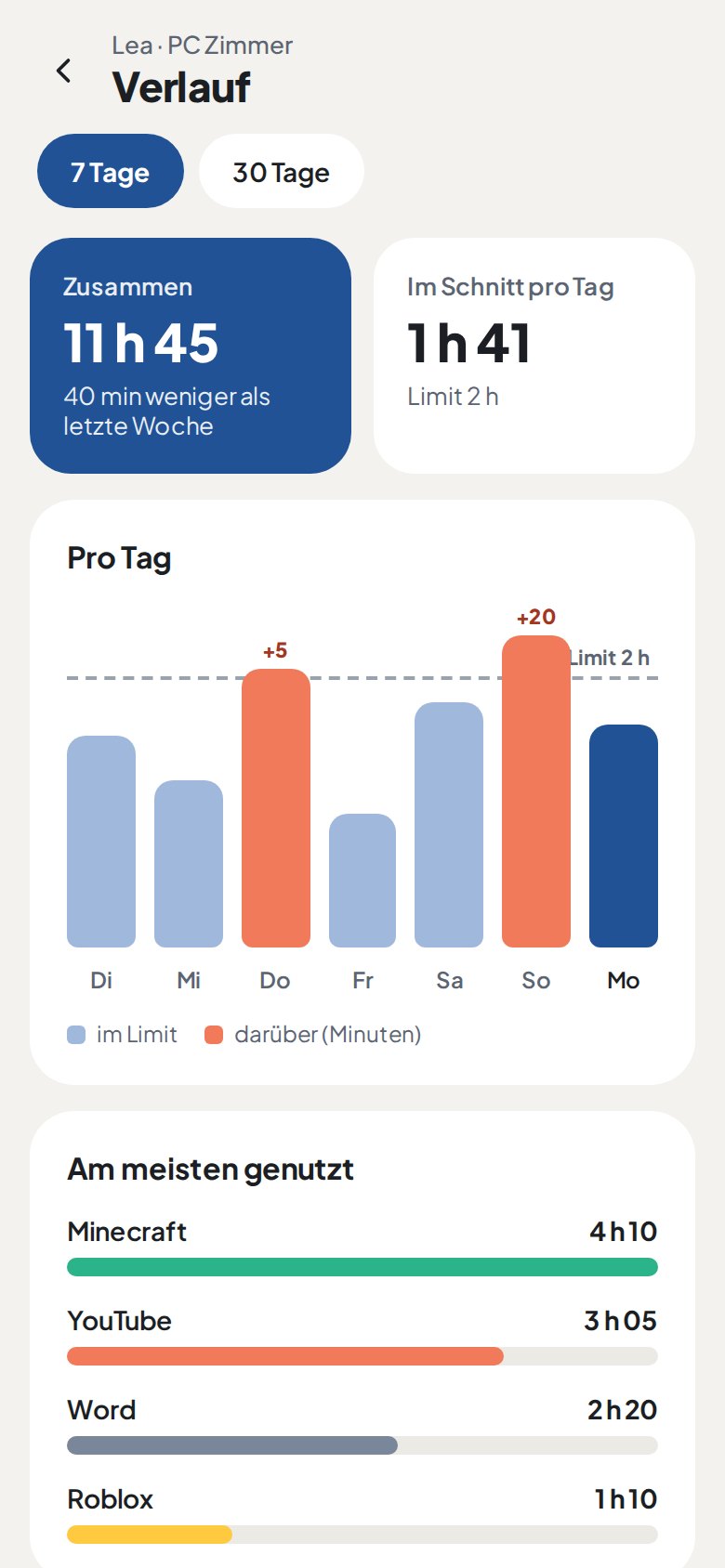
With Fairhour Plus, a weekly report arrives on Sunday evening: the week’s PC time compared with the week before.
By Telegram or e-mail
On the PC in the parent area, under Notifications to your phone, enter a Telegram bot or an e-mail account and choose what is reported. The weekly report (Sunday evening) contains the PC time, the comparison with the week before, time spent in games and the three most used programs.
11Forgot password
- Parent password on the PC: create a recovery key in good time under Settings → Recovery key and keep it away from the PC. It lets you set a new password.
- Family password (app and web): choose Forgot password? and enter the recovery code. You create this code in the app or in the web view under “Password backup”.
12Remove Fairhour
- In the parent area, remove system protection (Remove service). Fairhour also clears the browser rules.
- Then uninstall Fairhour in Windows under Settings → Apps.
- Delete the parent app data on the server: in the app or at fairhour.ch/delete-family.html.
Download my data
You can get everything the server stores about your family as a file (JSON): in the parent app under Settings → Download my data, or in the web view under My data → Download data. Password and access keys are not included. This works at any time, also before deleting.
Questions? Write to support@fairhour.ch.